

Quantum Fiber Outage Map: How to Track Network Issues
Learn how to read a Quantum Fiber outage map, confirm your address's status, and run quick checks on your connection before contacting support.
Key takeaways
- Check your address on the provider's outage map first, since a highlighted area usually points to a network fault rather than a problem in your home equipment.
- Read the status label for your area and confirm its meaning on the provider's official status page before acting on it.
- Check whether all devices on your connection are affected, then compare that result with the map status before contacting support.
- A normal map status with a persistent local problem still deserves a report to the provider, because map data can lag behind real conditions.
- An outage map shows live service status, while fiber mapping software is used to plan and document the physical network.
What does a Quantum Fiber outage map show for your address?
A quantum fiber outage map is a map-based view that shows service status across a fiber network, so you can see at a glance whether your area is affected by a reported problem. Instead of calling support and waiting on a hold queue, you open the map, locate your address, and read the status shown for the area around it. The map reflects the network as the provider currently records it, so it is most useful as a first check before you troubleshoot your own equipment.
Finding your service area on the map
Start by entering your address or zooming to your neighborhood on the map. Confirm that the highlighted area covers your home, because service boundaries follow the network's distribution routes rather than street lines. If your address sits near the edge of a highlighted zone, check the neighboring areas as well, since a fault a few blocks away can still affect the segment that serves you.
Reading each outage status indicator on the map
Each area on the map carries a status label, and the wording on your provider's page is the authoritative reference. Read the label, then open the provider's official status page or help article that explains what each label means, and confirm the interpretation there before acting on it. Do not assume that a color alone tells the full story; a labeled status is more reliable than a shade you have to guess at.
- Open the provider's outage map and enter your address.
- Locate the highlighted area that contains your home.
- Read the status label for that area.
- Open the official status explanation to confirm what the label means.
- Check the connection on your side, such as the modem's status lights, before concluding the problem is external.
The map is an efficient first step, but it works best as one check in a sequence rather than the final answer. A local problem, such as a loose cable or a restarting modem, will not appear on a network-wide map. A mapping tool built for network teams serves a different purpose: it documents the plant rather than reporting live status. For example, if the map shows no reported issue in your area but your connection stays down after a power cycle of your equipment, the fault is more likely on your side and worth reporting to support. Understanding Vetro Fiber in Fiber-Optic Design explains how fiber distribution is structured, which helps when you want to understand why neighboring addresses can show different statuses.
How can you check a Quantum Fiber outage in your neighborhood?
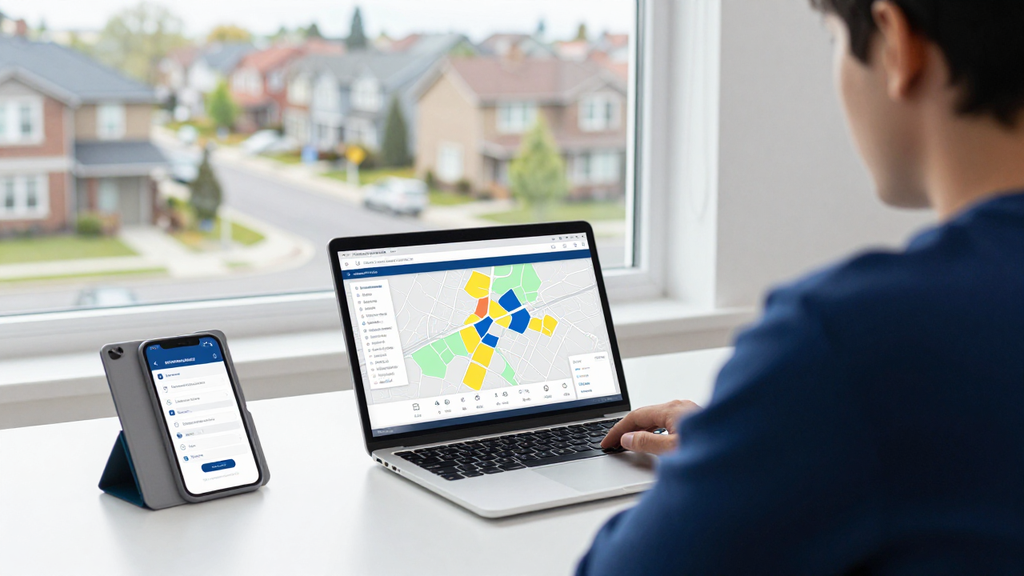
To check whether a Quantum Fiber outage affects your neighborhood, open the provider's outage map, locate your own area, and read the status shown for that location before you troubleshoot anything on your side. The map shows the condition of a service area rather than your individual line, so it is the fastest first check. If the status reads as normal, a problem is more likely local to your home. If it shows an issue, you can stop troubleshooting and wait for updates. Checking the map this way keeps you from spending time on equipment that is not at fault.
Entering your street address to check status
Start by entering your street address or selecting your location on the map. Confirm the pin or highlighted area matches your home, because a nearby street can return a different service area. Once the location is correct, read the status label for that area and note the date or time it was last updated. Treat a stale timestamp with caution, since an older status may no longer describe current conditions. Write down the status before you move to the next step so you can compare it later.
Comparing map results with your own connection
Next, compare the map result with what you see at home. Check whether your connection drops across all devices or only on one. Confirm that the modem's status lights match the provider's description of normal operation before going further. If the map reports an issue in your area, your symptoms likely match a wider problem, and you should follow the provider's updates rather than reset equipment repeatedly. If the map shows normal service but your connection is still down, the cause is more likely local, such as a loose cable or a failed device.
The main exception is when a neighbor's service is affected while your own map status looks normal. Map data can lag behind real conditions, so a local symptom that persists after a restart should still be reported to the provider. In that situation, the map is one input rather than the final answer. Using a fiber optic mapping tool such as GIS Fiber Optic Network Mapping: Complete 2026 Guide can help you understand how network areas are organized, although the provider's own map remains the authority for outage status.
- Open the provider's outage map and enter your street address.
- Confirm the highlighted area matches your home.
- Read the status label and note its last-updated time.
- Restart your router and check whether all devices are affected.
- Compare the result with the map status before contacting support.
| Map status | Your connection | What to do next |
|---|---|---|
| Reported outage in your area | Down on all devices | Follow provider updates and avoid repeated resets |
| No outage shown | Down on all devices | Restart equipment and check cable connections |
| No outage shown | Down on one device only | Troubleshoot that device and its Wi-Fi settings |
| Outage shown, but timestamp is old | Working normally | Recheck the map and treat the older status with caution |
How can MapItRight help you track fiber network issues alongside Quantum Fiber outage information?
A Quantum Fiber outage map answers one question: is service disrupted in a given area right now. Fiber network management software answers a different question: where the physical plant is, how it is connected, and who needs to act on a problem. MapItRight is built for the second question. It gives operators a plant map to work from while outage information comes from the provider's own pages, so the two sources complement each other rather than compete.
Tools named in the top-ranking result
The top-ranking result for this topic is a roundup of fiber optic mapping software tools, not an outage map (6+ Best Fiber Optic Mapping Software Tools). That distinction matters. A roundup evaluates software that models a fiber plant: strands, splices, splitters and drops. An outage map displays provider-reported service status by location. A reader who expects a roundup to show live outages will be disappointed, and a reader who expects an outage map to document plant assets will also be disappointed.
MapItRight belongs to the first category. Its product offers real-time collaboration features and GIS overlays for enhanced visualization, and it provides an API-driven backend for integration. Those are plant-management capabilities. They help a team record where a fault sits in the network and share that location with the people who will repair it, which is the step that follows confirming an outage.
Picking the right fiber mapping tool step by step
Use the following sequence to decide whether a mapping tool fits your work:
- Write down the problem you need solved: confirming a provider outage, documenting plant assets, or coordinating field crews.
- Check whether the tool models fiber elements such as strands, splices, splitters and drops, or only displays generic map layers.
- Confirm that the tool supports the GIS overlays your region already uses, such as city or county data.
- Check how the tool shares updates between office staff and field crews in real time.
- Confirm the integration path, including whether an API is available for billing or monitoring systems.
- Compare the plan tiers listed for MapItRight against your location count and number of users before committing.
When these checks are complete, you should be able to see the fiber plant clearly on the map, with each element tied to the records your team maintains.
The right choice depends on who is asking. If you are an individual customer checking whether your own service is down, you need the provider's outage information and, if it is unavailable, a clear path to support. If you operate a network, you need a plant map. If your team is a small startup building its first network, a plant map may be more useful than an outage feed, because you have no existing records to reconcile against live status yet. For an established operator with a large existing plant, the priority is usually importing that data without losing its structure, so integration capabilities should weigh more heavily in the decision.
For a deeper look at evaluating these tools, see choosing the best fiber network mapping tool. Teams planning GIS-based documentation can also review GIS fiber optic network mapping before deciding which data sources to combine.
How does MapItRight differ from a basic outage map for homeowners?
A basic outage map shows service status to customers, while MapItRight is a category of fiber optic mapping software built for planning, documenting, and managing the fiber network itself. The two answer different questions: an outage map tells a homeowner whether service in an area is currently reported as affected, whereas a mapping tool helps operators and engineers understand where the plant runs, how it is built, and who needs to act on it.
Which homeowners and network teams use each map
You typically consult a provider's outage map when your connection drops and you want to know whether the problem is local or widespread. The map is designed for quick status checks by customers who have no access to the underlying network records.
Network teams, by contrast, need detailed records of routes, splices, and equipment. MapItRight is aimed at ISPs, co-ops, cities, and engineering firms that maintain this kind of plant data, and it supports real-time collaboration so field crews and office staff can work from the same map. If you have no role in network operations, a provider's outage map is usually the more relevant tool.
What question each map answers for you
An outage map answers the question "Is my service affected right now?" It is most useful when you want to confirm whether a reported problem matches what the provider has published for your address, and it is the starting point when you track a quantum fiber outage map status for your area.
A fiber mapping tool answers different questions: where a particular drop originates, which overlays such as GIS layers show the surrounding infrastructure, and what construction staking information applies to a route. MapItRight includes GIS overlays for enhanced visualization and construction staking sheets for precise guidance, which are planning features rather than customer-facing status information.
- Outage map: confirms current service status for a location.
- Fiber mapping software: documents the plant, supports planning, and coordinates field work.
- Use the outage map first if you are a homeowner; use mapping software only if your role involves maintaining or building the network.
The distinction matters most when a network team is also a customer. An operator may check a public outage map to see what subscribers are being told while using its own mapping records to locate the fault, so the two tools complement rather than replace each other. For more on how fiber mapping supports this kind of work, see GIS fiber optic network mapping.
When should you contact Quantum Fiber support instead of waiting?
Contact Quantum Fiber support when the outage map shows no reported problem in your area, but your connection still fails. A map reflects what has been reported and confirmed, so a clean status does not rule out a fault on your side. Before you call, gather the details below so the support team can act on the first conversation rather than asking you to repeat basic information.
Signs the problem is inside your home
Start by separating a local equipment fault from a network-wide problem. If other devices on the same connection work normally, the issue is likely confined to one device, its settings or its wireless link. If every device in the home loses service at the same time, the fault is more likely upstream of your router, in the cable or equipment that brings the signal into the building.
Check the simple local causes first: confirm the modem and router have power and that their status lights are not showing an error, restart the equipment, and test a wired connection to rule out Wi-Fi interference. If the connection works on a wired device but not on wireless devices, the problem is in the wireless setup, not the line. Recording which devices fail and when they fail gives you evidence that separates a home-side fault from a reported outage.
Details to gather before calling Quantum Fiber support
Have your service address and account details ready, along with the exact location you checked on the outage map and what status it displayed. Note the time the problem started, whether it is continuous or intermittent, and which devices are affected. These facts let the support team compare your report against known conditions in your area.
It also helps to write down the steps you have already taken, such as restarting equipment or testing a wired connection, and the result of each. Keep the model numbers of your modem and router on hand. If you use a mapping or network-management tool to record issues, such as GIS fiber optic network mapping, export the same timeline so that your notes are consistent when you speak with support. A clear, ordered record is what turns a vague complaint into a diagnosis.
Which features should MapItRight offer for tracking network issues?
A fiber network tracking tool should do two things well: show where the plant runs and let the people who maintain it see problems as they happen. MapItRight offers real-time collaboration and GIS overlays, which together cover those two needs. When you evaluate any tool for tracking network issues, use the criteria below to decide whether it fits your operation, and treat a provider's outage map as a separate resource that answers a different question.
Visual layers that show network routes
The most useful feature for issue tracking is a layered map that lets you switch between plant information and external context. A fiber route is only meaningful when you can see where it sits relative to roads, parcels and other infrastructure, so look for a tool that can overlay that context on the plant itself. MapItRight includes GIS overlays for enhanced visualization, which lets teams view network records alongside geographic data rather than in a separate system.
Layers matter most when the question is "which segment is affected?" rather than "is there an outage somewhere?" A map that shows splices, drops and routes in the same view lets a dispatcher narrow the search to a specific run. For example, a team investigating a complaint in one subdivision can isolate the feeder serving those addresses and compare it against the route drawings. A simple map may be enough for a small network with only a few routes, since extra layers can add clutter without adding insight.
Sharing outage data with team members in real time
An issue is only tracked well if the people who need it can see the same information at the same time. Real-time collaboration reduces the lag between the office that logs a problem and the field crew that fixes it. MapItRight offers real-time collaboration features, so a report entered by one user can be viewed by others without waiting for a file to be exported and sent.
When you assess collaboration features, check who can edit, who can only view, and whether changes are recorded. A shared map is useful when every change has a clear author and time, because it prevents two people from working from different versions of the same route. If your organization has a strict approval process for network changes, confirm that the tool supports that workflow before you rely on live sharing. Teams with a single technician and no office staff may not need multi-user editing at all.
A quantum fiber outage map from a provider can tell you whether a service problem is reported in your area, but it does not show your own plant, your crews or your records. Use that map to confirm a public outage, and use a mapping tool to manage the network behind it.
Frequently asked questions
Does the outage map update on its own, or do I need to refresh it?
The provider's outage map is typically reloaded by you rather than pushed to your screen, so refreshing the page is the simplest way to see the latest status for your area. Check the timestamp or update label near your location, because an older status may not reflect the current situation. If the status still looks out of date after a refresh, wait a short time and check again before assuming the information is wrong.
What should I do if my address does not appear on the map?
If your address does not appear, try entering it in a slightly different format, such as with or without an apartment number, or zoom in on your neighborhood and locate your street manually. If it still does not show, the area may be outside the provider's current service map, so contact Quantum Fiber support to confirm your service status. Record the address you entered and the result you saw so you can share it when you call. For background on how fiber distribution is laid out, you can read Understanding Vetro Fiber in Fiber-Optic Design.
Can the map show planned maintenance as well as unplanned outages?
Some provider maps and notices distinguish planned maintenance from unplanned outages, but whether yours does depends on what the provider publishes. Read the status wording carefully, because a planned work notice can look similar to a fault at a glance. If your provider lists scheduled work, compare its time window with your own connection problems before you start troubleshooting at home.
How do I tell whether my equipment or the network is at fault?
Start by checking whether the outage map shows a reported problem in your area, since a network-wide issue usually affects every device in the neighborhood. If the map shows no outage and only one device fails, the fault is more likely local, so restart the modem and router, check the cable connections, and test a wired device. If all devices fail while the map shows nothing, contact support. Our guide to GIS Fiber Optic Network Mapping explains how plant areas are organized, which helps explain why nearby addresses can show different statuses.
Is there a cost to use an outage map?
An outage map offered by your provider for checking service status is generally available to customers without a separate charge, but confirm this with Quantum Fiber because policies can change. The map is a status tool and does not replace your service agreement. If you have questions about your account charges, contact the provider directly rather than relying on the map. Review the Terms of Service for MapItRight if you are evaluating our software instead of a customer outage view.
Conclusion
A quantum fiber outage map shows, by location, whether service is interrupted across a fiber network. Checking it for your address tells you if a problem is local or widespread before you troubleshoot your own equipment.
If the map shows an outage in your area, follow the provider's updates and avoid repeated resets. If it shows no outage but your connection still fails, restart your equipment, check the cables, and note the exact location and status you saw so you can share it with support.
Fiber mapping software is a separate category built for planning and managing the network itself. MapItRight offers real-time collaboration and GIS overlays for teams that maintain plant data, so it complements, rather than replaces, the outage status shown by your provider.